

"Call of Duty: Black Ops 6: Grainy and Blurry Graphics Explained"
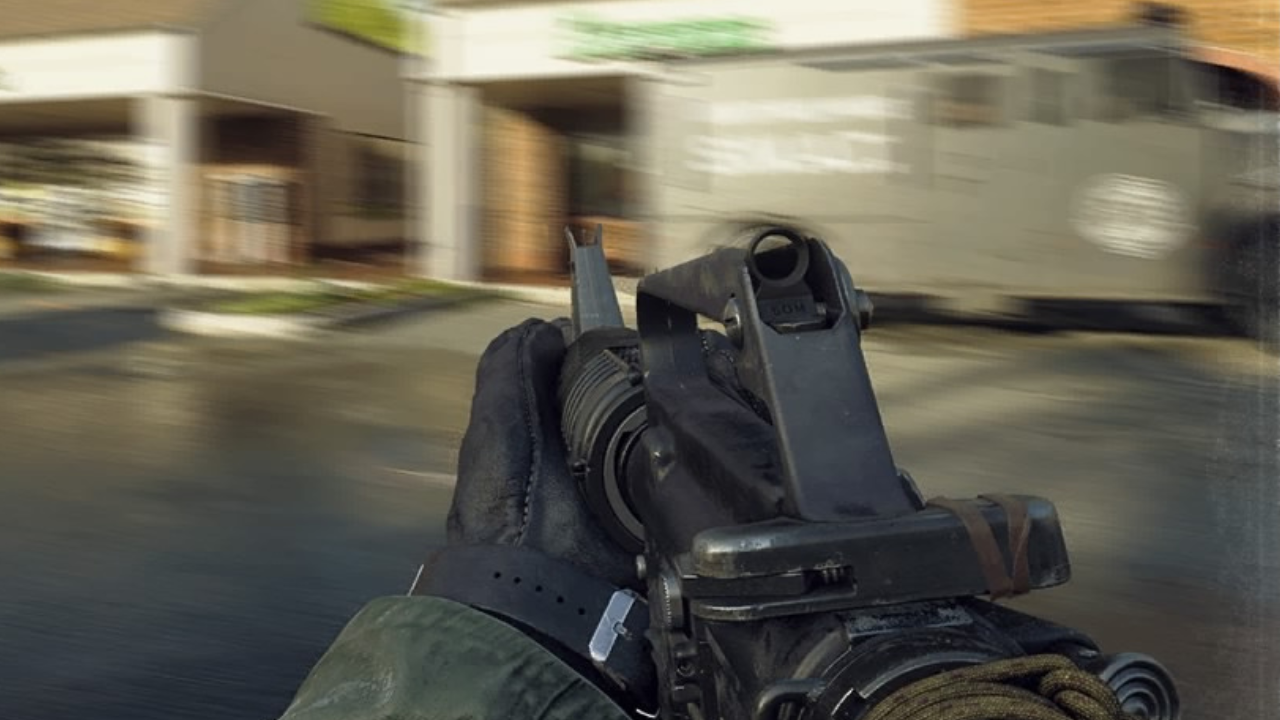
When diving into a premium AAA title like *Call of Duty*, players naturally expect top-notch performance. However, if you find that *Black Ops 6* graphics seem grainy and blurry, impacting your immersion and making it challenging to spot targets, don't worry—there are ways to enhance your visual experience.
Table of contents
Why Does Black Ops 6 Look Grainy & Blurry? AnsweredHow to Turn Off Blur in Call of Duty: Black Ops 6How to Reduce Grain and Improve Clarity in Black Ops 6How to Improve Black Ops 6 Image Details and Textures
Why Does Black Ops 6 Look Grainy & Blurry? Answered
If Black Ops 6 appears grainy and blurry on your setup, even after adjusting your hardware settings to ensure your console outputs at the highest resolution your monitor can handle, the issue likely stems from in-game settings. Even if you've tweaked these before, updates can sometimes reset them to default. The key settings affecting image quality are nestled within the graphics settings under the Display, Quality, and View tabs. The Quality tab, in particular, houses the settings you'll want to adjust to improve how Black Ops 6 looks.
How to Turn Off Blur in Call of Duty: Black Ops 6
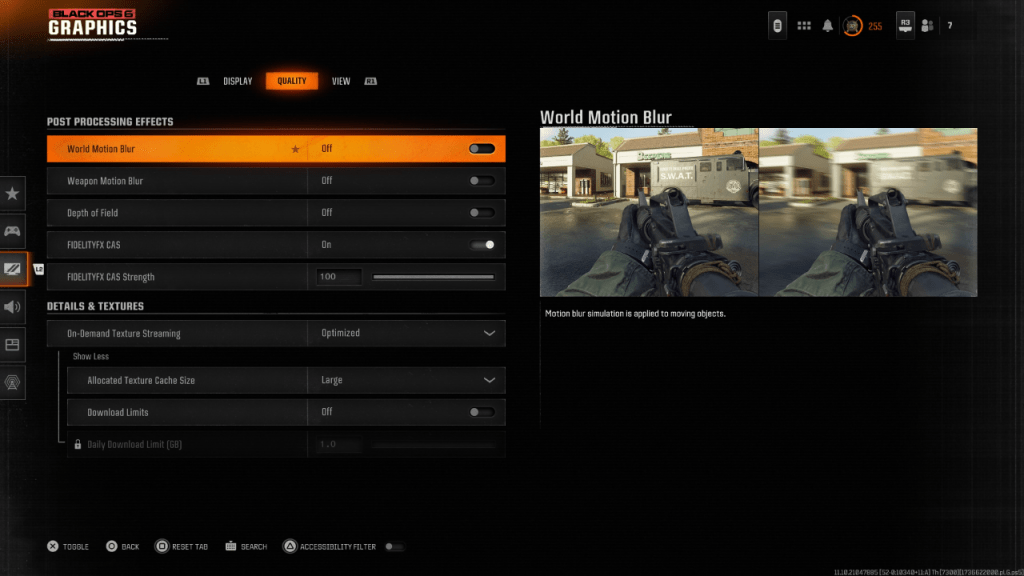 For a more cinematic feel, games often include Motion Blur and Depth of Field to mimic camera lens effects, enhancing the film-like quality. While this can enrich the experience in narrative-driven games, in a fast-paced, competitive shooter like Call of Duty: Black Ops 6, these effects can blur your view and make targeting more difficult.
Here's how to disable these effects:
Navigate to the graphics settings, select the Quality tab, and scroll to Post Processing Effects. Turn World Motion Blur to Off. Turn Weapon Motion Blur to Off. Turn Depth of Field to Off.
How to Reduce Grain and Improve Clarity in Black Ops 6
Even after tweaking the above settings, you might still notice some graininess. This could be due to incorrect gamma and brightness settings. Head to the Display tab in the Black Ops 6 Graphics settings, click on Gamma/Brightness, and adjust the slider until the Call of Duty logo in the middle panel is barely visible. A setting of 50 often works well, but you may need to fine-tune based on your display.
Next, in the Quality tab, ensure FIDELITYFX CAS is set to On. This activates AMD's FidelityFX Contrast Adaptive Sharpening, which boosts the sharpness of the game's visuals. While the default setting of 50/100 is recommended, cranking it up to 100 can further enhance clarity if needed. If these adjustments don't suffice, the issue might be with On-Demand Texture Streaming.
How to Improve Black Ops 6 Image Details and Textures
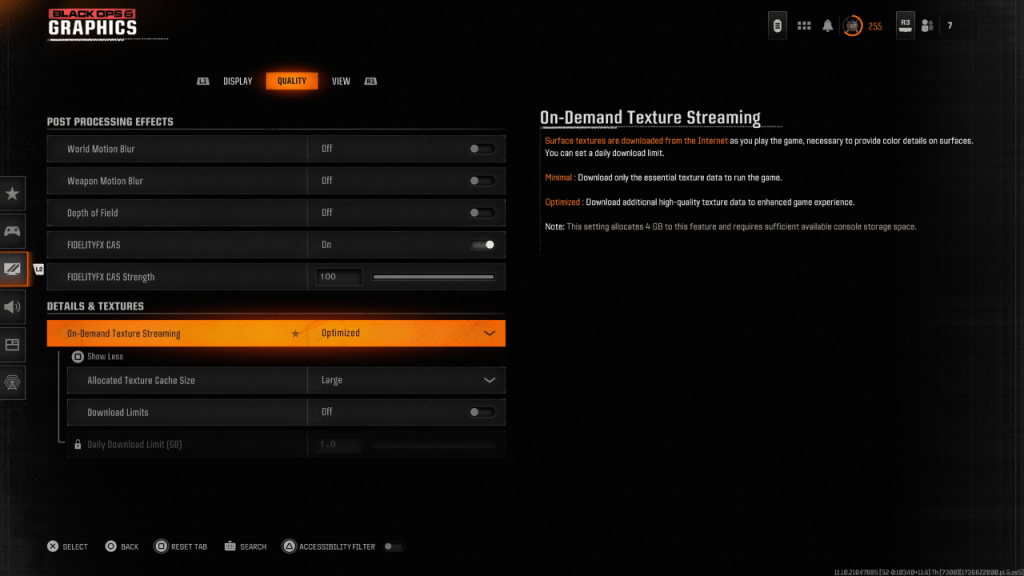 To manage the hefty file sizes of modern Call of Duty games, Black Ops 6 employs On-Demand Texture Streaming, which downloads textures as you play rather than storing them locally. While this saves space, it can compromise image quality.
To optimize this, go to the Details & Textures settings under the Quality tab. Set On-Demand Texture Streaming to Optimized to download higher-quality textures. Click "Show More" to access additional options, and set the Allocated Texture Cache Size to Large. This will use more storage but allow for more textures to be downloaded at once. If your internet plan doesn't limit data usage, switch Download Limits to Off to ensure Black Ops 6 can fetch all the high-resolution textures it needs for peak graphical performance.
By following these steps, you can significantly improve the visual quality of Call of Duty: Black Ops 6, ensuring a clearer, more immersive gaming experience.
-
 Tetris GemsChallenge your skills with Tetris Gems, an exciting puzzle game that delivers endless entertainment! Strategically manipulate colorful gem-shaped blocks descending from above, aiming to form complete horizontal lines that vanish upon completion. Cle
 -
 Unspecified BehaviourMeet "Unspecified Behavior," an extraordinary point-and-click adventure! Join charming robots in a dystopian world where drones handle mundane chores while you uncover secrets on a mysterious island. Solve clever puzzles, face unexpected turns, and s
 -
 Ninja SagaDiscover the hidden ninja within you in Ninja Saga, a captivating RPG adventure adored by millions globally. Immerse yourself in breathtaking manga-style visuals as you craft a personalized Ninja Avatar, equipping them with an extensive arsenal of w
 -
 Cheddar's Scratch KitchenDiscover a new way to enjoy your favorite comfort food classics with Cheddar's Scratch Kitchen app. Find the nearest location, browse the menu, and place To Go orders in seconds. From crave-worthy Chicken Tenders to perfectly grilled salmon, satisfy
 -
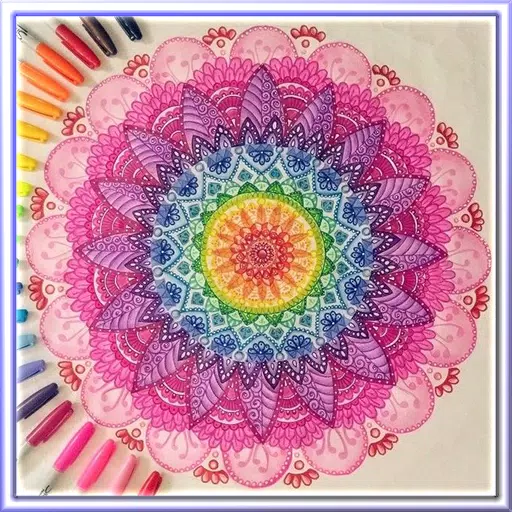 Mandalas easyExplore a world of creativity with simple mandala designs.Unleash your imagination with easy mandalas, where you can shape and create figures from anything you envision.Discover a new approach to crafting that's simple, affordable, and fun—its popula
 -
 Cimson VeilStep into the shadowy world of Crimson Veil, where vampires and seduction intertwine in this gripping RPG adventure. Play as Mila, a tormented vampire hunter torn between her sworn duty and dark cravings. Will you stand with Noctorna, her warrior gu
-
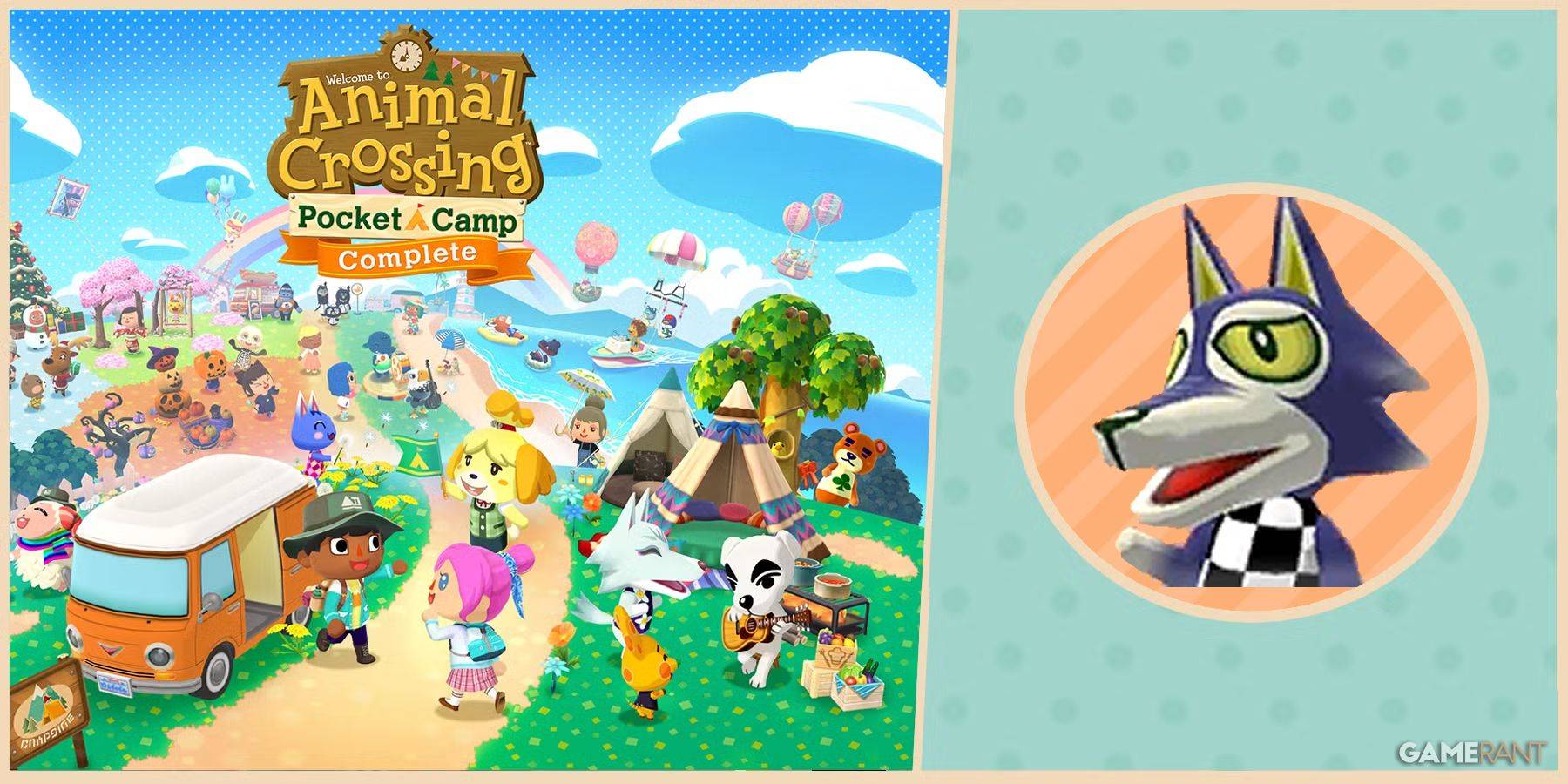 Animal Crossing: Pocket Camp Complete - How to Unlock Lobo
-
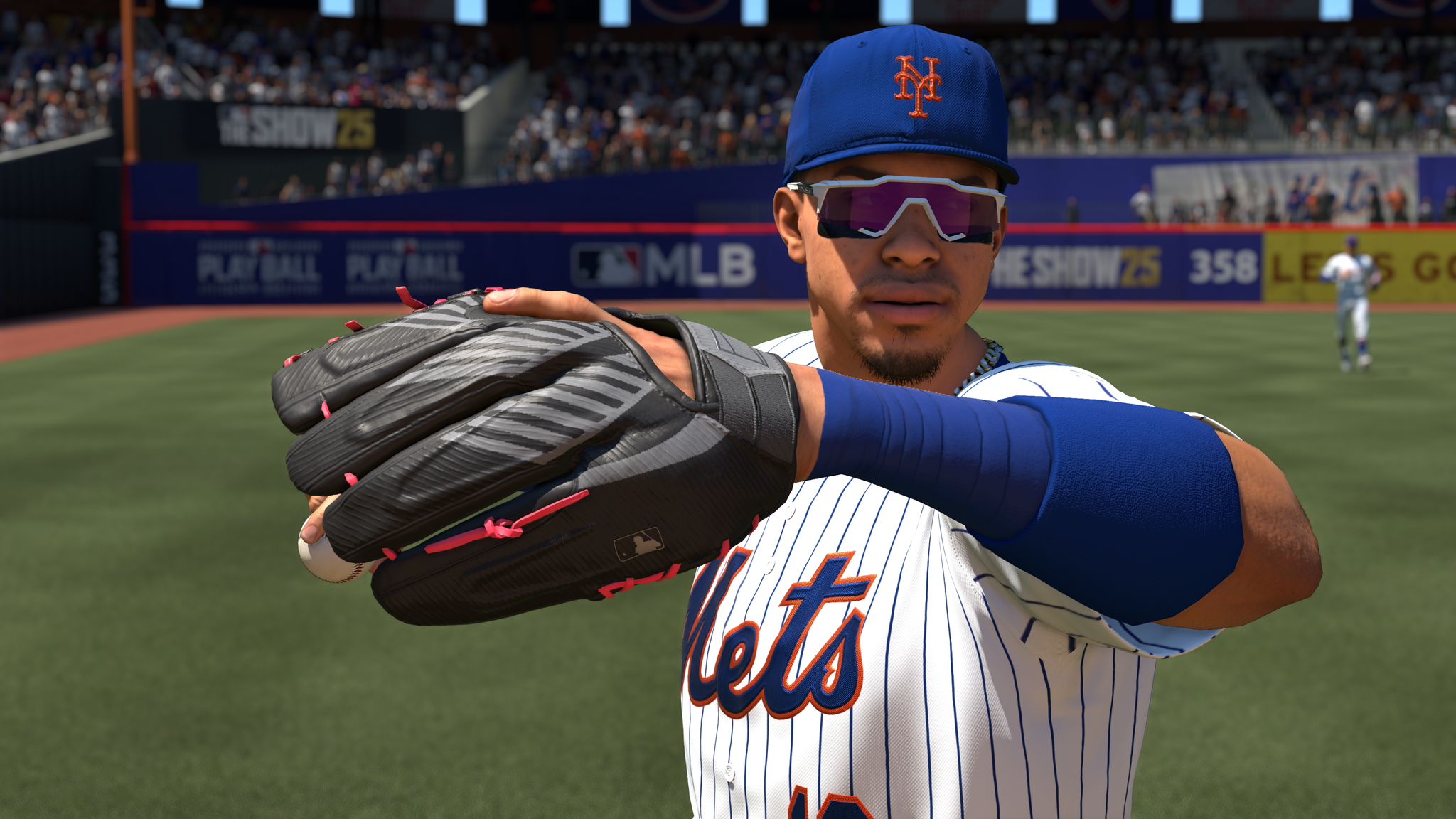 Best MLB The Show 25 Diamond Dynasty Cards & Lineups (March 2025)
-
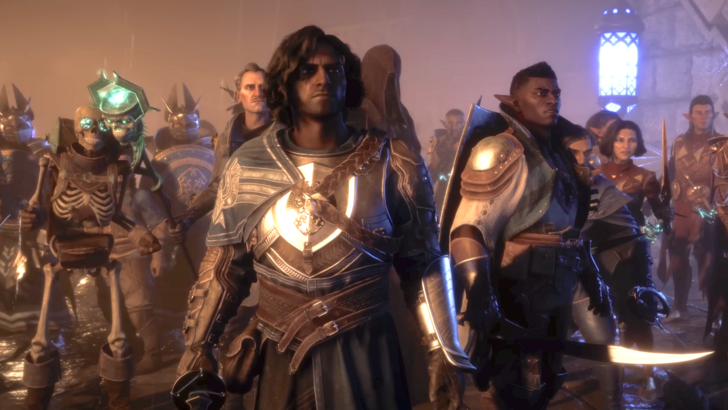 Veilguard DLC Delayed for Mass Effect 5
-
 Archero 2 Tier List – Ranking the Best Characters in February 2025
-
 Marvel vs Capcom 2 Original Characters May Show Up in Capcom Fighting Games